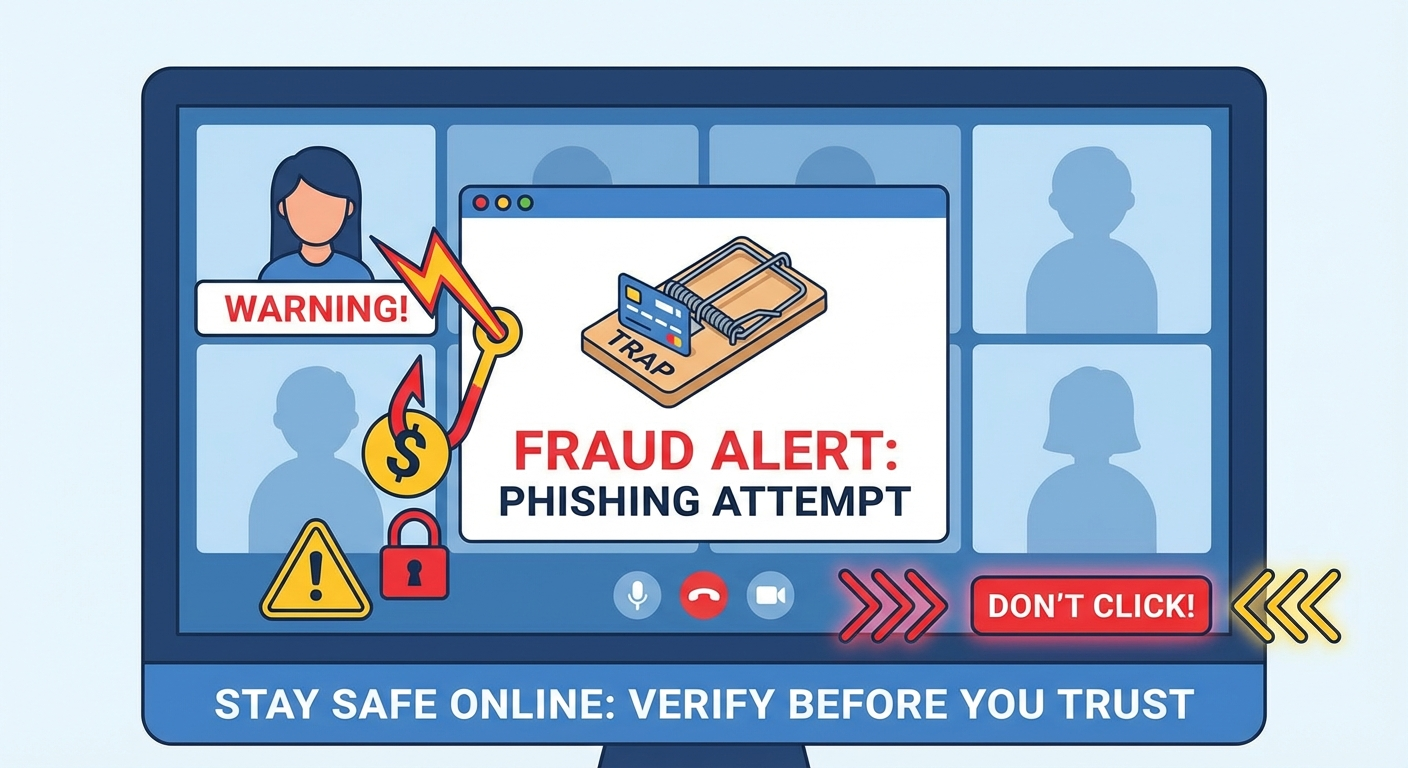
You’ve received a meeting invite that looks like it’s from Zoom, Microsoft Teams, or Google Meet. The message says you need to update your software before joining. Stop right there—this could be a scam that gives criminals complete control of your computer.
A dangerous new phishing scam is targeting anyone who uses video calls for work, school, or family connections. Fake meeting invitations are tricking people into downloading software that gives hackers total access to your computer—your files, passwords, bank accounts, and everything else.
This scam is spreading fast, and it’s designed to fool even careful people. Security experts are calling it one of the most convincing video conference scams they’ve seen.
Here’s everything you need to know to protect yourself.
How This Scam Works (in 4 Simple Steps)
Step 1: You Get a Fake Meeting Invitation
The scam starts with an email that looks exactly like a real meeting invitation from:
- Zoom – “You’ve been invited to join a meeting”- Microsoft Teams – “Action required: Join scheduled meeting”- Google Meet – “Meeting starting soon”
The email creates urgency by mentioning:
- An important work meeting- A healthcare appointment- A government benefits review- A job interview- Even a party or family gathering
Everything looks legitimate—professional formatting, correct logos, proper language. Some scammers even use real Zoom or Teams systems to send these emails, which is why they pass through spam filters that usually catch fake messages.
Step 2: You Click the Link and Land on a Fake Website
When you click the “Join Meeting” button, you’re taken to a website that looks identical to the real Zoom, Teams, or Meet login page. Everything appears normal:
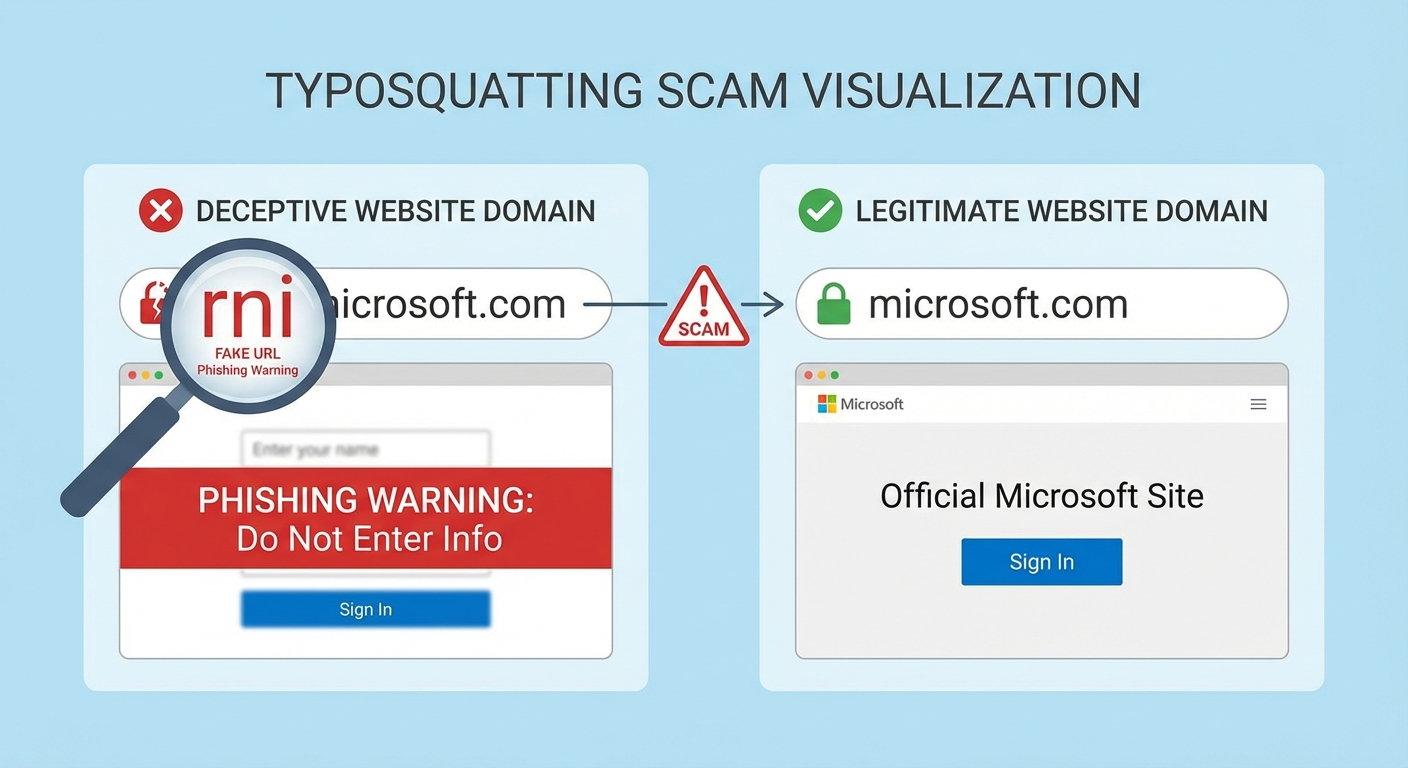
- The company logo and colors match perfectly- You might see a list of “participants” who are supposedly already in the call- Some fake sites even show participants “joining” in real-time to make it feel urgent- The URL might look close to legitimate (like “zoom-meet.us” instead of “zoom.us”)
Step 3: The Fake “Software Update” Trap
Here’s where the scam springs its trap. Instead of joining a call, the site tells you there’s a problem:
“Your Zoom application is out of date. Download the latest version to join this meeting.”
Or:
“A software update is required before you can connect.”
The page might include a step-by-step installation guide, a progress bar, or a countdown timer to pressure you into acting quickly. Some versions disguise the download as something else entirely—like a “party invitation card” or a “document requiring your signature.”
Step 4: You Install Remote Access Software—and Criminals Take Over
That “update” you downloaded isn’t Zoom software at all. It’s Remote Monitoring and Management (RMM) software—legitimate tools that IT professionals use to remotely access computers. Scammers abuse these same tools.
Once installed, criminals have complete control. They can:
- Watch everything on your screen in real-time- Control your mouse and keyboard remotely- Access, copy, or delete any files on your computer- Read your emails and messages- Steal saved passwords from your browser- Log into your bank accounts while you watch helplessly- Install ransomware or additional malware- Use your computer to attack other people
Here’s the scary part: These are legitimate, digitally-signed programs that Windows and Mac trust. Your antivirus won’t flag them as dangerous because they’re real IT tools—just being used by the wrong people.
Common programs scammers install:
- AnyDesk- ScreenConnect (ConnectWise Control)- TeamViewer- LogMeIn- Datto RMM
If you didn’t intentionally install these programs yourself, they shouldn’t be on your computer.
Why Even Smart People Fall for This Scam
This isn’t your typical phishing email with misspelled words and broken English. This scam is dangerous because it exploits normal behavior:
✅ We trust video calls now — Most people get several meeting invites every week. Clicking “Join” has become automatic.
✅ Brand names feel safe — When you see the Zoom or Microsoft Teams logo, you naturally trust it.
✅ Updates are part of life — We’re trained to update our apps regularly. “Update required” sounds responsible, not suspicious.
✅ Urgency kills caution — When you think you’re late for an important meeting, you click first and think later.
✅ The software is real — The programs being installed aren’t obvious viruses. They’re legitimate remote access tools that businesses use every day—just being misused by criminals.
That’s what makes this scam so effective: it uses your good habits against you.
🚨 Red Flags: How to Spot a Fake Meeting Invite
Watch for these warning signs—even one should make you stop and verify:
✋ #1: The Email Address Looks Wrong
Click on the sender’s name to see the actual email address. A real Zoom invite comes from @zoom.us or @microsoft.com—NOT:
invite@zoom-meeting-service.net-noreply@zoom-updates.digital-teams-support@outlook-services.com
If the email address doesn’t match the official domain exactly, it’s fake.
✋ #2: Hover Over Links—They Go Somewhere Strange
Before clicking, hover your mouse over the “Join Meeting” button. Look at the bottom of your screen to see where it really goes. Be suspicious of:
- Misspellings:
zo0m.us(that’s a zero, not an O)- Extra words:zoom-meet.usorteams-updates.net- Weird endings:.digital,.info,.netinstead of the official.comor.us
Real meeting links go to zoom.us/j/…, teams.microsoft.com, or meet.google.com.
✋ #3: It Asks You to Download or Update Software
THIS IS THE BIGGEST RED FLAG.
Real video conferencing platforms will NEVER ask you to download software through a meeting link. If you see:
- “Download the latest version to continue”- “Update required before joining”- “Install meeting software”
STOP. It’s a scam. Real updates happen within the app itself or from the official website you visit yourself.
✋ #4: It Creates Artificial Urgency
Scammers want you panicked and clicking fast. Watch for:
- ⏰ Countdown timers (“Meeting starts in 3 minutes!”)- 👥 “5 participants are waiting for you”- ⚠️ “You will be locked out if you don’t join now”- 🚨 “Action required immediately”
Real meetings can wait 30 seconds while you verify.
✋ #5: You Didn’t Expect This Meeting
Ask yourself:
- Did I schedule this?- Do I recognize the organizer’s name?- Does this meeting make sense for my work/life?
When in doubt, verify another way: Call the person, text them, or check your calendar app. Don’t reply to the suspicious email—use a phone number or contact method you already have.
⚡ What to Do If You’ve Been Scammed (Act NOW)
If you’ve downloaded and installed software from a suspicious meeting link, every minute counts. Follow these steps in order:
IMMEDIATE ACTION (Do This First)
🔌 Step 1: Disconnect from the Internet RIGHT NOW
- Unplug your ethernet cable OR turn off Wi-Fi- This cuts off the hacker’s access to your computer- Do this BEFORE anything else
🗑️ Step 2: Find and Remove the Malicious Software
On Windows:
- Go to Settings → Apps → Installed Apps2. Look for programs installed today that you don’t recognize:
- ScreenConnect (or ConnectWise Control)- AnyDesk- LogMeIn- Datto RMM- TeamViewer (if you didn’t install it yourself)- Anything with “Remote” or “Support” in the name3. Click the program and select Uninstall4. If you can’t uninstall, restart in Safe Mode and try again
On Mac:
- Open Finder → Applications2. Look for unfamiliar apps installed today3. Drag suspicious apps to Trash4. Empty Trash
If you’re not sure what to remove, get help from someone tech-savvy NOW. Don’t turn your internet back on until the software is gone.
CRITICAL NEXT STEPS (Within the First Hour)
🔐 Step 3: Change ALL Your Passwords—But NOT on the Infected Computer
Use your phone or a different computer to change passwords for:
- Email (change this FIRST—it’s the key to everything else)2. Banking and credit cards3. Payment apps (PayPal, Venmo, Cash App)4. Work accounts5. Social media6. Any other account you’ve logged into recently
Important: Create NEW passwords—don’t reuse old ones. If you used the same password on multiple sites, change it everywhere.
🛡️ Step 4: Turn On Two-Factor Authentication (2FA)
Add this extra security layer to:
- Email accounts- Banks and credit cards- Payment services- Social media- Any account that offers it
Even if the scammers have your password, they won’t be able to get in without the second code.
WITHIN 24 HOURS
👀 Step 5: Check Your Accounts for Suspicious Activity
- Review recent bank and credit card transactions- Check your email “Sent” folder for messages you didn’t send- Look for password reset emails you didn’t request- Review recent logins on major accounts (Google, Microsoft, etc.)
📢 Step 6: Report the Scam
-
FTC: ReportFraud.ftc.gov- FBI IC3: IC3.gov- The impersonated company: Forward the fake email to:Zoom: security@zoom.us- Microsoft: phish@office365.microsoft.com- Google: phishing@google.com Your IT department (if this was a work computer) 🏦 Step 7: Protect Your Credit Place a fraud alert on your credit reports (free):
-
Call one of the three credit bureaus (they’ll notify the others):Equifax: 1-800-525-6285- Experian: 1-888-397-3742- TransUnion: 1-800-680-7289 Consider a credit freeze for extra protection 💻 Step 8: Consider Professional Help
If you:
- Stored sensitive documents on this computer- Used it for work or business- Aren’t confident you removed everything- Have valuable data you can’t afford to lose
Get a professional to examine your system. Some scammers install multiple programs or hidden backdoors. A cybersecurity professional or trusted IT service can make sure you’re truly clean.
ONGOING (Next Few Months)
- Monitor your bank statements weekly- Check your credit report monthly (free at AnnualCreditReport.com)- Watch for identity theft signs (unfamiliar accounts, credit inquiries you didn’t make)- Stay vigilant for follow-up scams (scammers may try again)
🛡️ How to Protect Yourself Going Forward
Never Install Software from Email Links
The Golden Rule: If an email or meeting link tells you to download or update software, DON’T.
Instead:
- Open the app on your computer and check for updates in its settings- Type the official website address directly into your browser (zoom.us, microsoft.com, google.com)- Download from your device’s official app store (Apple App Store, Google Play, Microsoft Store)
Use a Password Manager (Seriously—It’s a Game-Changer)
Free options like Bitwarden or built-in options (iCloud Keychain, Google Password Manager) will:
- Create super-strong passwords you don’t need to remember- Store different passwords for every account- Alert you if passwords are compromised- Make it impossible for one breach to affect all your accounts
This one tool can save you from dozens of scams.
Turn On Two-Factor Authentication (2FA)
This adds a second security step (usually a code sent to your phone) when logging in.
Enable it for:
- Email (Gmail, Outlook, Yahoo, etc.)- Banking and credit cards- Payment apps (PayPal, Venmo, Zelle)- Social media (Facebook, Instagram, X/Twitter)- Work accounts- Anywhere that offers it
Even if scammers steal your password, they can’t get in without your phone.
The 30-Second Verification Rule
When you get an unexpected meeting invite:
- Pause for just 30 seconds2. Ask yourself: Was I expecting this?3. Verify through another method—text, call, or check your calendar4. Only then click if it’s legitimate
30 seconds of caution > weeks of recovering from identity theft.
Keep Your Devices Updated
Make sure automatic updates are turned on for:
- Your operating system (Windows, macOS, iOS, Android)- Your antivirus software- Your web browser
Updates patch security holes that scammers exploit.
Protect Your Family
Share this article with people who might be vulnerable:
- Parents and grandparents (often targeted with fake doctor appointment or benefits scams)- Teenagers (targeted with fake party invites or job interview scams)- Anyone who uses video calls regularly
The more people who know about this scam, the less effective it becomes.
Why This Scam Is Spreading Fast
Scammers have figured out something clever: tricking you into installing legitimate software is easier than sneaking malware past antivirus programs. Security experts call this “living off the land”—using trusted tools for criminal purposes.
The numbers are alarming:
- Phishing attacks surged 400% between 2023 and 2024- The FBI reports billions in annual losses from email scams- Video conference scams specifically are exploding as remote work becomes permanent
The pandemic normalized video calls for everything—work, healthcare, school, even social gatherings. Scammers are taking advantage of that trust. And they’re getting better at it every day.
📌 Remember These 5 Things
- Real video calls NEVER ask you to download software from a meeting link. If you see this, it’s 100% a scam.2. Hover before you click. Check where links really go. One fake letter in a domain name is all it takes to fool you.3. The 30-second rule saves lives. Unexpected invite? Verify through another channel first. Call, text, or check your calendar.4. If you clicked, act in minutes—not hours. Disconnect internet → Remove software → Change passwords from another device.5. Share this warning. Your family members, coworkers, and friends might get targeted next. Forward this article to protect them.
The convenience of video conferencing changed how we work and connect. Don’t let scammers turn that convenience into a nightmare. A few seconds of caution before clicking can protect years of your digital life.
Take Action Now
🛡️ Protect Yourself:
- Bookmark this article for future reference- Enable two-factor authentication on your accounts today- Share this warning with 3 people who might be vulnerable
📢 Report Scams:
- FTC: ReportFraud.ftc.gov- FBI IC3: IC3.gov- Company-specific: Forward fake emails to security@zoom.us, phish@office365.microsoft.com, or phishing@google.com
💬 Have You Seen This Scam? If you’ve encountered a fake meeting invitation, report it immediately. Your report helps authorities track these criminals and warn others.
Share this article with anyone who uses Zoom, Teams, or Google Meet. You might save them from disaster.